
ShomerDNS Setup Instructions
Protect your family and devices by configuring your internet connection to use ShomerDNS. Below are simple guides for setting it up on common devices. No software needed!
📱 Android (9 and above)
- Go to Settings > Network & Internet > Advanced > Private DNS.
- Select Private DNS provider hostname.
- Enter:
shomerdns.com - Tap Save.
📋 Take Full Control Of Your Allow & Block Lists
Customise your own allow list and block list. These will override the default lists on ShomerDNS.
🔐 Note: Custom lists require an active ShomerDNS VPN connection. See below.
How to Create Your Lists
- Create your allow/block lists as a plain text file. (file ends in .txt)
- Place one domain name per line. See this example.
- Save the file in a cloud location eg: Google Drive, Drop Box, One Drive and share a view only link to that file.
- Use the Contact Form to send us the link.
How Updates Work
- Update your own list anytime. No need to notify us each time.
- ShomerDNS checks for updates automatically, usually once per week.
- Need a faster update? Update now at the Update Page.
🚀 WireGuard VPN Client
Required to use this service
Using our VPN will only send DNS requests to ShomerDNS.com. Once filtered by us, your Internet traffic will continue with your ISP and not go through our system. Use the Contact Form to request your VPN configuration.
Using a Config File
- Install WireGuard client app on your device.
- Click "Add Tunnel" > "Create from file or archive".
- Import the
.conffile provided by ShomerDNS. - Activate the tunnel.
Using a QR Code
- Install WireGuard client app on your device.
- Tap "Add Tunnel" > "Scan from QR code".
- Scan the QR code provided by ShomerDNS.
- Give it a name and activate the tunnel.
Download WireGuard Client:



ShomerDNS Browser Extension
Install the ShomerDNS extension and watch sites get flagged instantly as you browse.
Why Install It?
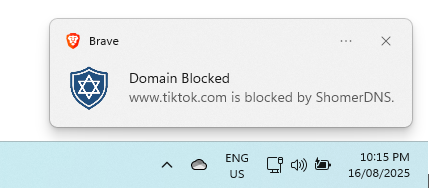
Get real-time notifications of blocked domains.
This is a flag to indicate what ShomerDNS blocks. You will need to change your DNS settings for real protection.
Get ShomerDNS Extension from Google Web Store
Supported browsers: Chrome, Edge, Brave, Opera, Vivaldi or any other Chromium based browser.
Contact & Community
Have questions, feedback, or require help? We'd love to hear from you. Please use the contact form.
Home | Support/FAQ | Terms | Privacy Statement | Statistics Page | Contact Form | Updater | Instructions